Add a one-time bonus through the API
Send bonus pay to one employee or a whole list using the API. No manual entry.



What it does
Add a one-time bonus for any worker with a single API call, no manual payroll entry needed. If you decide to write a script (or ask AI to do that for you), you can also send bonuses to multiple people in one run instead of one at a time through the app.

1
Create one-time bonus
2
Confirm compensation
3
Double-check in the UI
Ready
Setting up your API connection
Before you start, you'll need a Plane API key. Use a sandbox for this tutorial — it's a free, isolated test workspace with clean data, no billing impact, and no effect on any real payroll. Everything you need to set this up is explained in Plane's guide to your first API call.
Copy your key (note: it's only shown once) and set it as an environment variable so it's never pasted directly into a command:
Step 1: Create the one-time bonus
You just need one call: tell Plane who's getting paid, how much, and why. Swap in a worker ID from your sandbox (find one with GET <https://api.plane.com/v1/workers).
Notice there's no starts field; leave it out and it defaults to today, landing the bonus in whichever payroll period is currently open. Set it to a future date instead if you want to wait for a later period. See the compensations API reference for the full list of fields.
What it returns:
Step 2: Confirm the compensation
Filter by worker to check what's new on their record. This is a more natural check than looking up the compensation ID you just got back, since in practice you're asking "did this worker's pay change?" rather than "does this specific ID exist?"
You get back status (accepted), the amount, and the effective starts date, which cover most of what you need to confirm the write went through correctly. In the next step, we’ll confirm the rest.
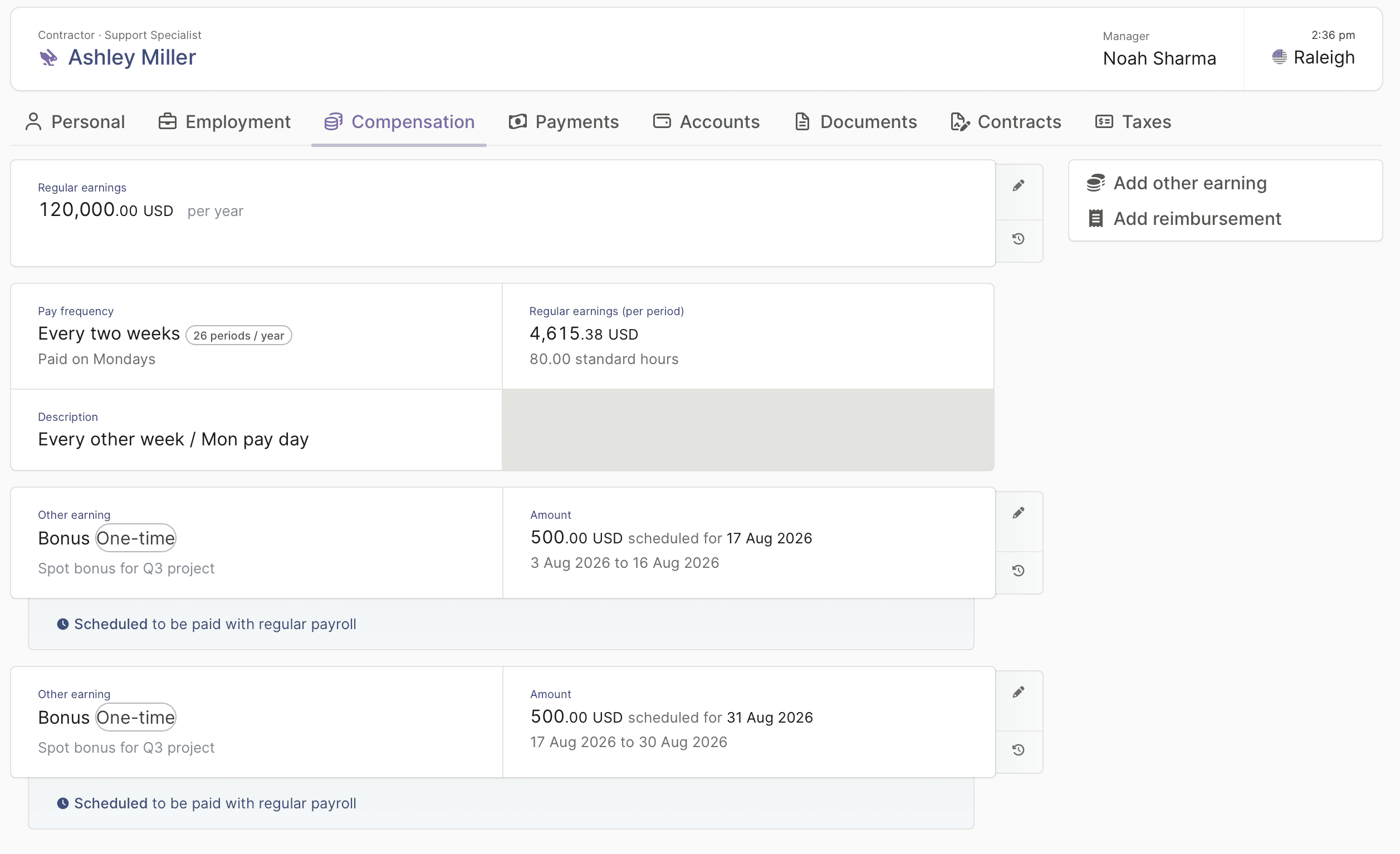
Step 3: Double-check in the UI
The API confirms the data is there, but it's worth a quick look in the UI, too. This is usually the easiest way to visually confirm everything landed where you expect, and it's what you'd actually show a teammate or stakeholder.
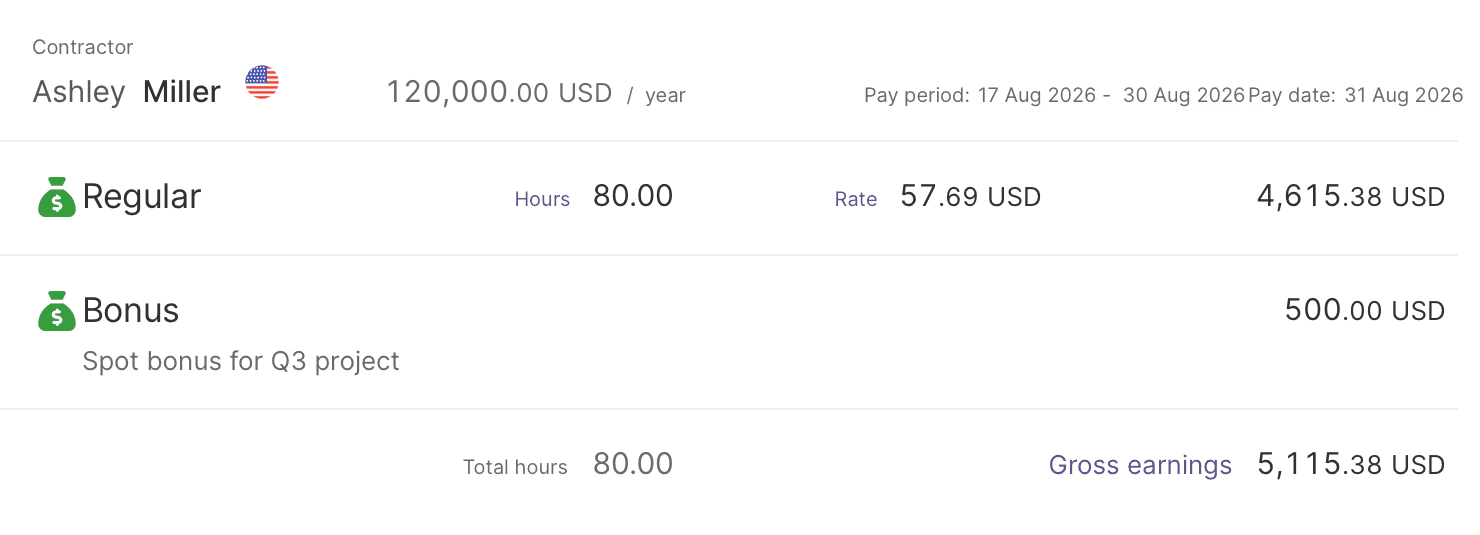
Every accepted compensation gets mapped into a Payroll Change, Plane's record of anything that affects a payroll run.
What you'll need
A Plane workspace with API access enabled
A sandbox (recommended for this tutorial) or production API key with permission to manage compensations; see Plane's API key setup guide
The worker's ID (
wr_...) you're paying the bonus tocurl, or any HTTP client
Good to know
Tip 1
Ask AI to turn this one call into a batch script for your whole team
Tip 2
Plane's API can create payroll changes in a clean trackable way