AI can help spot attrition risk before your best people leave
Avoid a surprise resignation. With HR data and AI, you can quickly analyze who’s most at-risk in your company, and take action to keep them.
Author
Last Update

Table of Contents
Loading headings...
42% of employees who left their job said their manager or company could have done something to make them stay, according to Gallup.
But to save your best people, you first have to know they’re at-risk.
Most leaders don’t have time to comb through rows of HR data and stacks of spreadsheets looking for risk signals. The good news: AI can do it in minutes, surfacing a list of at-risk employees you can target for career conversations and salary reviews.
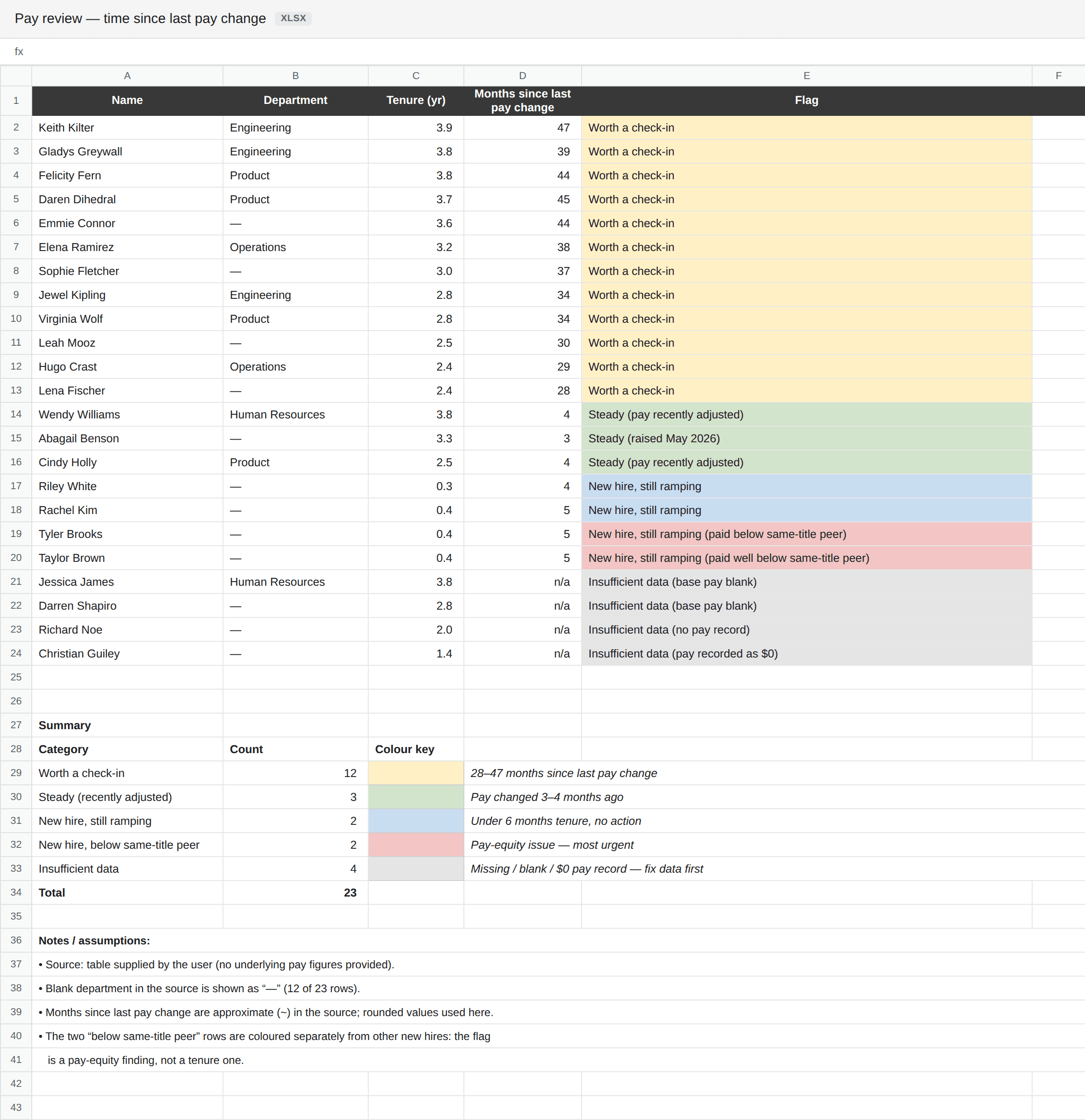
Run an analysis of your existing HR data to spot attrition weak spots. Here’s how to use an AI app like Claude or ChatGPT to do it.
Disclaimer: This use case surfaces employee record signals (e.g., tenure, pay history, and role history) that may indicate someone is about to leave. It isn’t a performance evaluation or a prediction, and it isn’t legal or HR advice.
Setting up your MCP connection
Before you start, connect your AI app to Plane. In an MCP-compatible client like Claude or ChatGPT, add Plane as a remote connector using the link below. For more detailed instructions, check out our MCP guide.
Step 1: Tell your AI app which data to pull, then have it create criteria for attrition risk
Now that your AI application has access to Plane, it can pull live data that’s stored there, typically including tenure, pay, and role information.
If you have an existing attrition risk framework, great. You can easily tell your AI application how to analyze the data for you. But even if you don’t, AI has the ability to create a framework for you and break down the data. Simply ask.

Have an HR workflow you want to solve with AI?
Tell us what you're stuck doing by hand. If it's a good fit, we'll build it for free.
Step 2: Customize your criteria
The more data you have stored in Plane, the deeper your AI app can analyze risk factors. If you want to see the data broken down further, list additional criteria and then put your AI app to work.
Step 3: Build a table
Your AI app can organize the attrition data in just about any way you want. Decide how you want to share the results with your team, then ask for the ideal output.
Step 4: (Optional) Convert the table into a Google Spreadsheet
If you prefer to use Google Spreadsheet, you can ask your AI app to convert the table into a Google Spreadsheet. Just make sure your AI app is connected to Google Drive (e.g., you’ll need to add Google Drive as a connector in Claude). Once it’s connected, use a prompt like this:
Equipped with attrition risk data, you decide what’s next. Maybe a presentation in an upcoming meeting or setting up check-ins with targeted managers with higher-than-average attrition risks for their staff.
What you'll need
A Plane workspace with your people's tenure, compensation, and role history
Admin access in Plane
An MCP-compatible AI client (like Claude or ChatGPT) connected to Plane and optionally to Google Drive

Emily Andrzejewska is an AI Enablement Engineer at Plane, where she helps HR teams work confidently and independently with AI. She has spent over a decade in software and education, and believes the best technology lets people "fly with their own wings."


