Ask for a PTO dashboard, AI builds it
Still building PTO charts in Excel? There’s an easier way to get a customized dashboard for planning, analysis, and sharing.
Author
Last Update

Table of Contents
Loading headings...
A PTO dashboard should help you quickly visualize real-time data and make decisions. But most of the time, it means spending half a day in Excel, building an already outdated pivot table.
With Plane, your live data is pulled instantly into custom visual dashboards. You prompt. AI builds. You get on with your day.
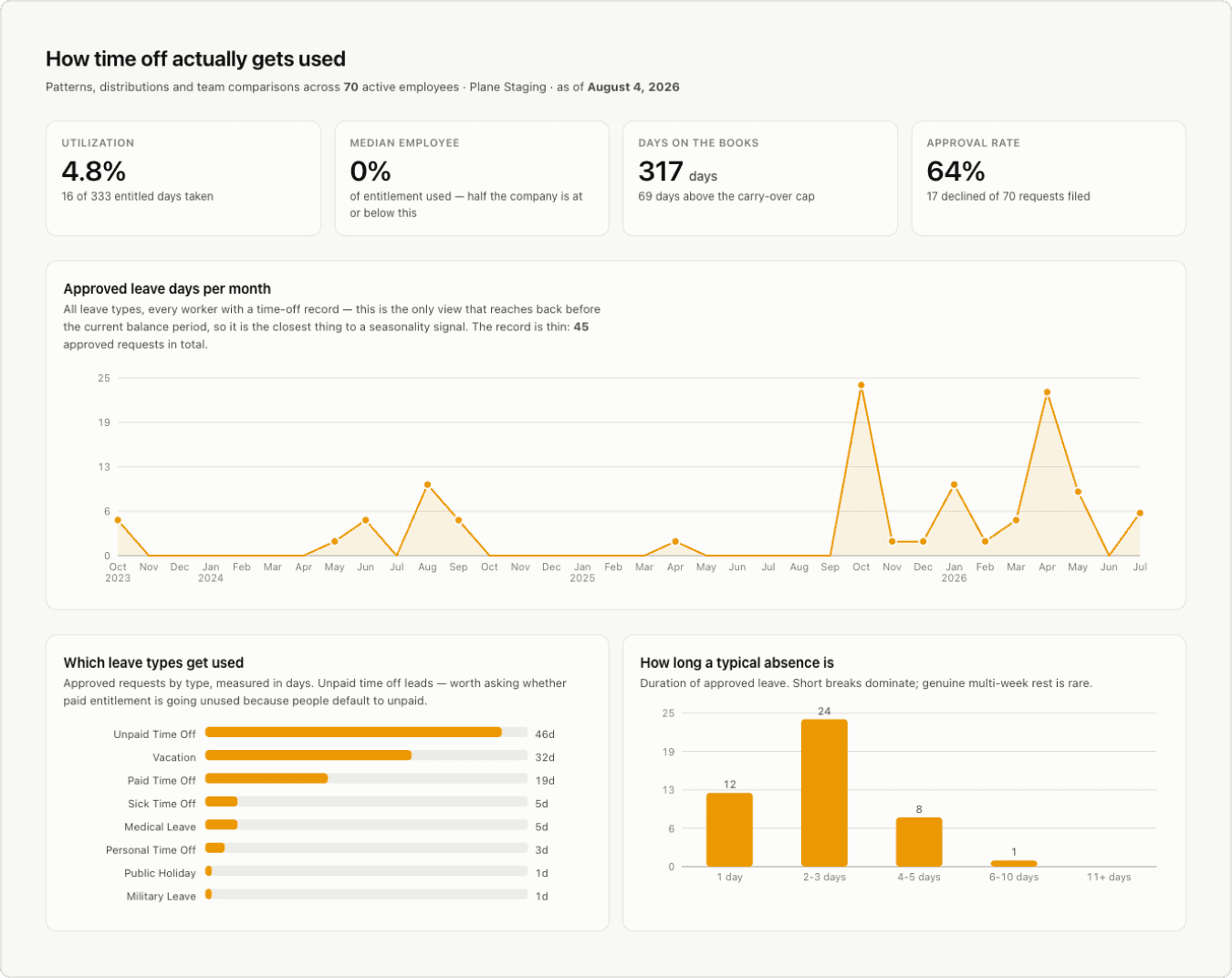
Auditing your current PTO policy? See who’s taking too little or a lot of PTO.
Staff planning for peak season? Get a snapshot of who can cover additional projects.
Worried about employee burnout? Identify which individuals or teams could use more time off.
Create custom PTO dashboards for the data you want to see now. Here’s how:
Setting up your MCP connection
Before you start, connect your AI app to Plane. In an MCP-compatible client like Claude or ChatGPT, add Plane as a remote connector using the link below. For more detailed instructions, check out our MCP guide.
Step 1: State your goal and ask for a few dashboard options, as a starting point
Your AI app can help if you don’t have a clear picture in mind for what you want your dashboard to look like. Simply ask for options.
Start by requesting a few different layouts to pick the format that shows the data you want to see. Note that how you word your prompt will depend on how you word your leave policies and what specifically you’re looking for (e.g., “paid time off” vs. “vacation”).
Step 2: Customize your view
Once your AI app shows you a few dashboard versions, choose your favorite and give it more feedback.
Step 3: Download your preferred version
After your AI app has customized the dashboard, you can download it as an HTML file. If the result isn’t already a downloadable HTML file, ask this:

Have an HR workflow you want to solve with AI?
Tell us what you're stuck doing by hand. If it's a good fit, we'll build it for free.
Step 4: (Optional) Dig deeper by experimenting with Claude Artifacts
If you’re using Claude Cowork, you can upload the HTML dashboard that you just downloaded and ask Claude to create an artifact for it:
Claude Cowork might suggest creating an artifact for you. In that case, just choose “Create” when given the option, instead of entering the prompt above.
Once Claude has created the artifact, you’ll be able to access it in the Artifacts section in the left panel of Claude in the future. A big advantage to using Claude Cowork to create an artifact is that it pulls fresh data every time you open it, and you can share a link to it with your teammates.
Note: You can also create an artifact if you’re using Claude Chat, but the artifact’s data will stay static and will not be refreshed each time you open it. To get an artifact that stays up-to-date, you’ll need to upload the HTML dashboard from Claude Chat into Claude Cowork and then ask Claude Cowork to create an artifact.
What you'll need
A Plane workspace with your people, their departments, and recorded time off
Admin access in Plane
An MCP-compatible AI client (e.g., Claude or ChatGPT) connected to Plane

Emily Andrzejewska is an AI Enablement Engineer at Plane, where she helps HR teams work confidently and independently with AI. She has spent over a decade in software and education, and believes the best technology lets people "fly with their own wings."


