Never write another employment verification letter by hand
Learn how to write and send an employment verification letter using an AI app.
Author
Last Update

Table of Contents
Loading headings...
Employment verification letters are the kind of task that tends to be urgent but arrives when you’re in the middle of something else. An employee is closing on a mortgage or signing a lease, and they need a letter today. So you stop what you're doing, look for a template, dig through records for their title and start date, and double-check the details, all for a document that says what your payroll and HR system already knows.
The good news is that, if you use an AI app like Claude or ChatGPT, and it’s connected to your employee directory, you can easily create an employment verification letter in seconds. Ask for the letter in plain language and get back an accurate, ready-to-send draft pulled straight from your employee records. You can even ask the employee’s manager to review the letter, *and* send the approved letter to your employee, all through an AI app.
Below, we walk step-by-step through how to write and send an employment verification letter using an AI app. For Plane users, you can do this through our MCP server or Plane Agent, your AI teammate in Slack, so we’ll use Plane in our walkthrough.
Watch it in action
Prefer a two-minute version? Learn how to write and send an employment verification letter using an AI assistant in this video from Emily at Plane.
Option A: Use your AI app with Plane's MCP server
If your team already works in an AI app like Claude or ChatGPT, you can connect it to Plane once and ask for letters right there.
Setting up your MCP connection
Before you start, you’ll connect your AI app to Plane. In an MCP-compatible client, add Plane as a remote connector using the link below. For more detailed instructions, check out our MCP guide.
Step 1: Ask for the letter
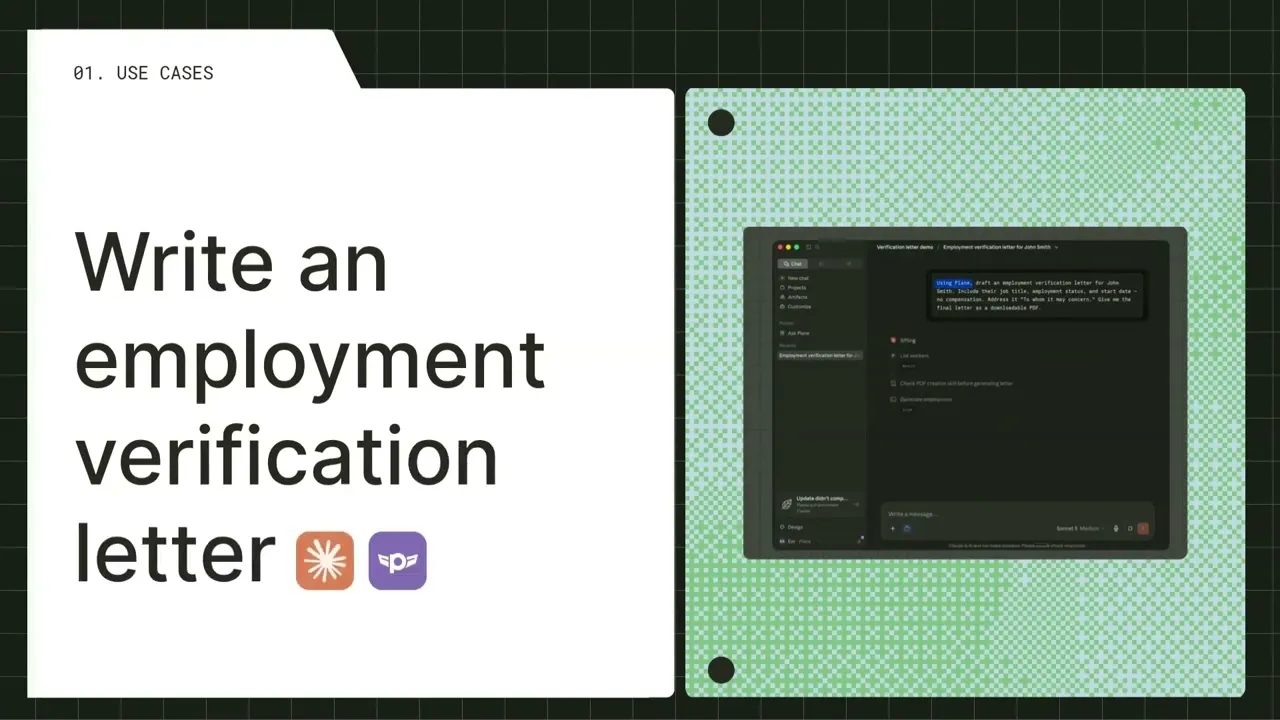
Describe what you need the same way you'd explain it to an assistant or any other colleague. Name the employee and the details to include:
A quick note on control: you decide what goes in. Leave salary out by saying so, as above, and add a specific recipient, such as a bank or a landlord, if the letter should be addressed to someone in particular.

Have an HR workflow you want to solve with AI?
Tell us what you're stuck doing by hand. If it's a good fit, we'll build it for free.
Step 2 (optional): Route it for approval first
Plane knows who each employee reports to, so you don't have to look it up. Ask the AI app to find the manager and prepare the approval request:
If your assistant is connected to your email or Slack, it can drop the request straight into a draft for your review. Nothing sends until you say so.
Step 3: Send it
Once the letter is approved, ask the app to draft the email to the recipient with the letter attached. You can even come back later and ask "Did the manager reply?" and your app reads the response and updates the letter if they asked for a change.
Option B: Ask Plane Agent in Slack
If you'd rather not leave Slack, Plane Agent brings the same capability into the channels you already use.
Setting up Plane Agent
To turn on Plane Agent in Slack, sign into your Plane account and go to the Features catalog. Note that Plane Agent is currently in beta.
Step 1: Ask for the letter
Describe it in plain language, just as above:
Step 2 (optional): Route it for approval
Ask Plane Agent to send the draft to the right person before it goes out:
Plane pulls the reporting relationship from the employee's record and drafts the request for you. You don't have to watch for the reply. Come back later and ask "Did Jordan's manager reply?" and Plane will read their feedback and update the letter for you to confirm.
Step 3: Review and send
Plane Agent returns a complete draft built from current records, in PDF form. Read it over, ask it to make any edits, and send it to the employee, right from Slack.
What you'll need
For Plane Agent, you'll need it enabled in your Slack workspace (via the Features catalog). For the MCP route, you'll need an MCP-compatible AI client such as Claude or ChatGPT connected to Plane. To route approvals and send automatically, connect your assistant to Slack or email.
Congrats! The letter that used to interrupt your flow becomes a quick task. Plane already has all the info you need and can do the work for you.
Want to learn more about how Plane's open API, MCP, and CLI can help you ditch the busywork of payroll, HR & compliance? We're happy to chat with you. Set up a call with our team.

Emily Andrzejewska is an AI Enablement Engineer at Plane, where she helps HR teams work confidently and independently with AI. She has spent over a decade in software and education, and believes the best technology lets people "fly with their own wings."


