Pay bonuses at scale without the manual effort
Send bonus pay to one employee or a whole list using the API. Plane folds it into your next payroll run.
Author
Last Update

Table of Contents
Loading headings...
Bonuses are baked into high-performing companies.
Maybe the business had a stellar quarter. Maybe a salesperson blew through quota, or an engineer shipped the feature nobody thought was possible.
And now it’s time for bonuses. Great for employees, but for HR it often means clicking around the platform one worker at a time. Find the person, go into compensation, fill out the form, save, repeat.
At a 20-person company, bonuses can take up an afternoon. At a 2,000-person company, they take up an FTE.
But with Plane’s open API, you can send a single call to handle a one-off bonus for any worker. Write a script (or ask AI to write one for you), and you can also send bonuses to multiple people in one run.
Below, we’ll walk through how to set up the API call, confirm it landed, and see everything in the Plane app.
How to set it up
Before getting started, you’ll need a Plane API key.
Best practice is to use a sandbox for this tutorial so you can test with clean data, no billing impact, and no effect on live payroll. Everything you need to set up an API connection is detailed in Plane’s guide to your first API call.
From there, copy your API key and set it up as an environment variable so it’s never pasted directly into a command:
Step 1: Create a one-time bonus
Now we’ll build the call, telling Plane who’s getting paid, how much, and why. From your sandbox, get the worker ID you need with GET https://api.plane.com/v1/workers
Your call will follow this format:
Note: There’s no starts field in this example. If you want the bonus to take effect in the current open payroll period, leave it out. The system will default to today. To wait for a later period, set it to a future date. You can find a full list of fields in our compensation API reference.
Plane will return a response:

Have an HR workflow you want to solve with AI?
Tell us what you're stuck doing by hand. If it's a good fit, we'll build it for free.
Step 2: Confirm everything went through
To check your work, send a second call. The best way is to filter by worker instead of the compensation ID you just got back. In practice, you’re not asking “Does this ID exist?” You’re asking “Did this worker’s pay change?”
You’ll get back status (accepted), the amount, and the effective starts date; this helps confirm the write went through correctly. It’s good to double-check by looking at the UI, too, though, which we’ll do in the next step.
Step 3: Double-check in the UI
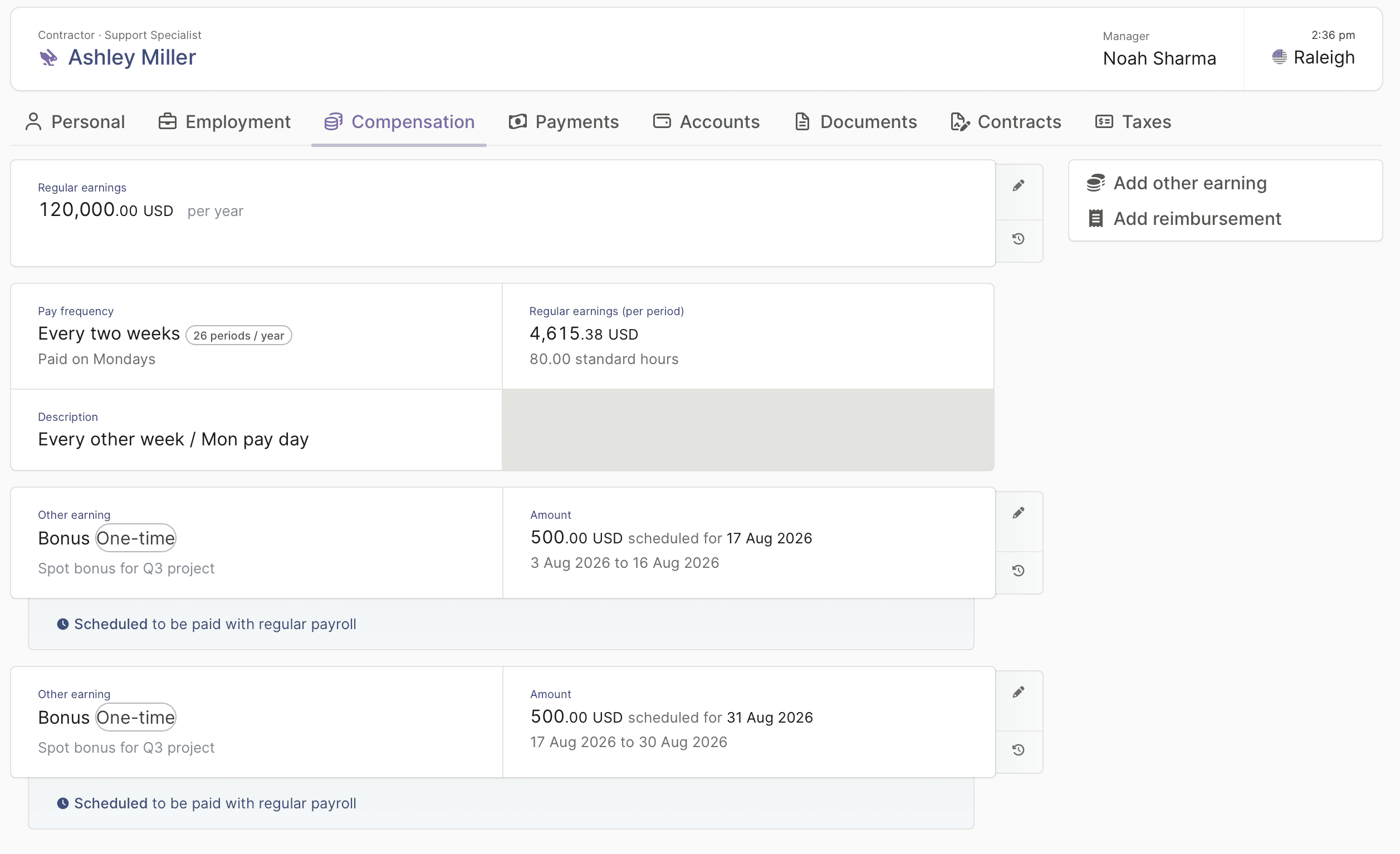
In addition to getting confirmation via API, it’s worth checking the Plane app for visual confirmation. In the Plane app, go to the Team page > Click on the worker’s profile > Compensation.
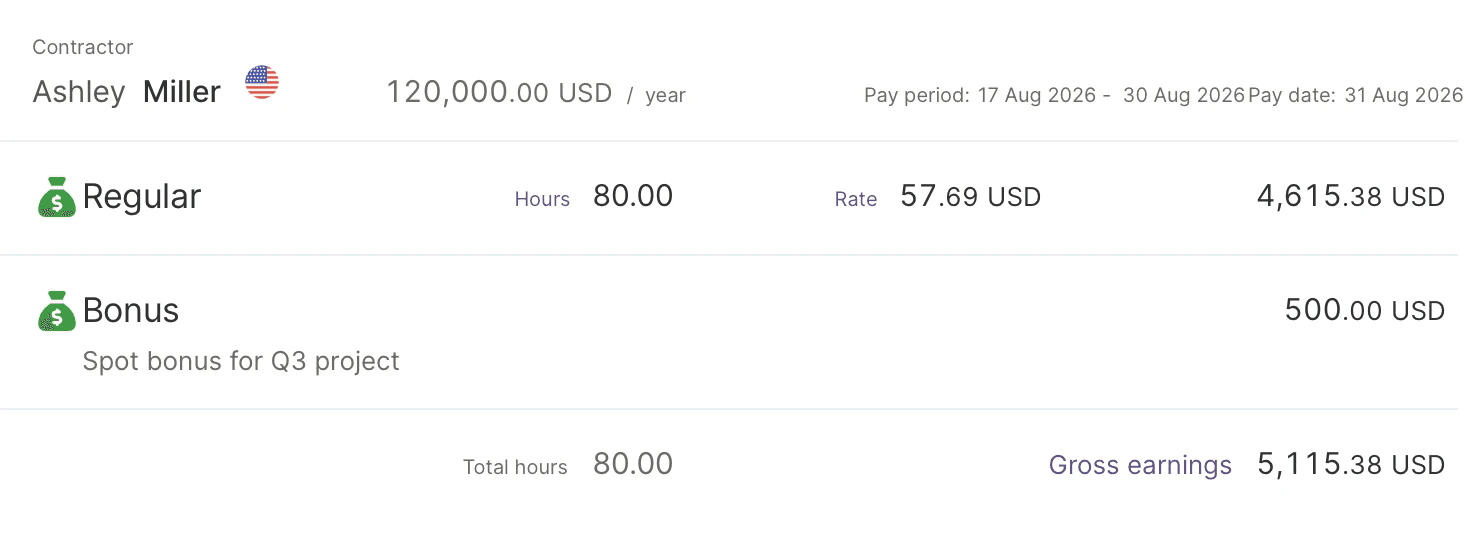
Every accepted compensation gets mapped into a payroll change, Plane's record of every component that affects a payroll run.
What you'll need
A Plane workspace with API access enabled
A sandbox (recommended for testing) or production API key with permission to manage compensation; see Plane’s API key setup guide
The worker’s ID (
wr_...) you’re paying the bonus tocurl, or any HTTP client

Emily Andrzejewska is an AI Enablement Engineer at Plane, where she helps HR teams work confidently and independently with AI. She has spent over a decade in software and education, and believes the best technology lets people "fly with their own wings."


